How to build an electrician website with AI
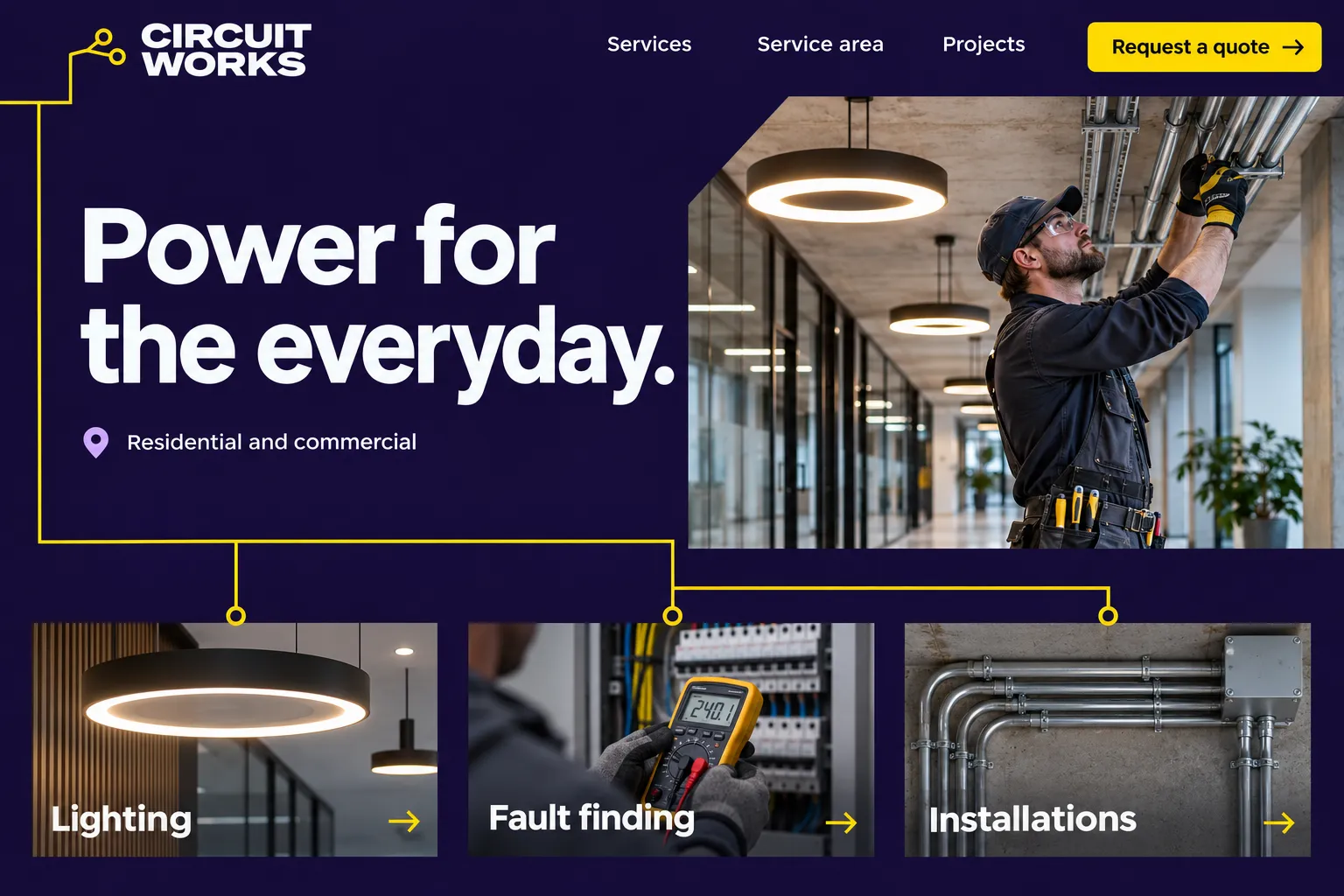
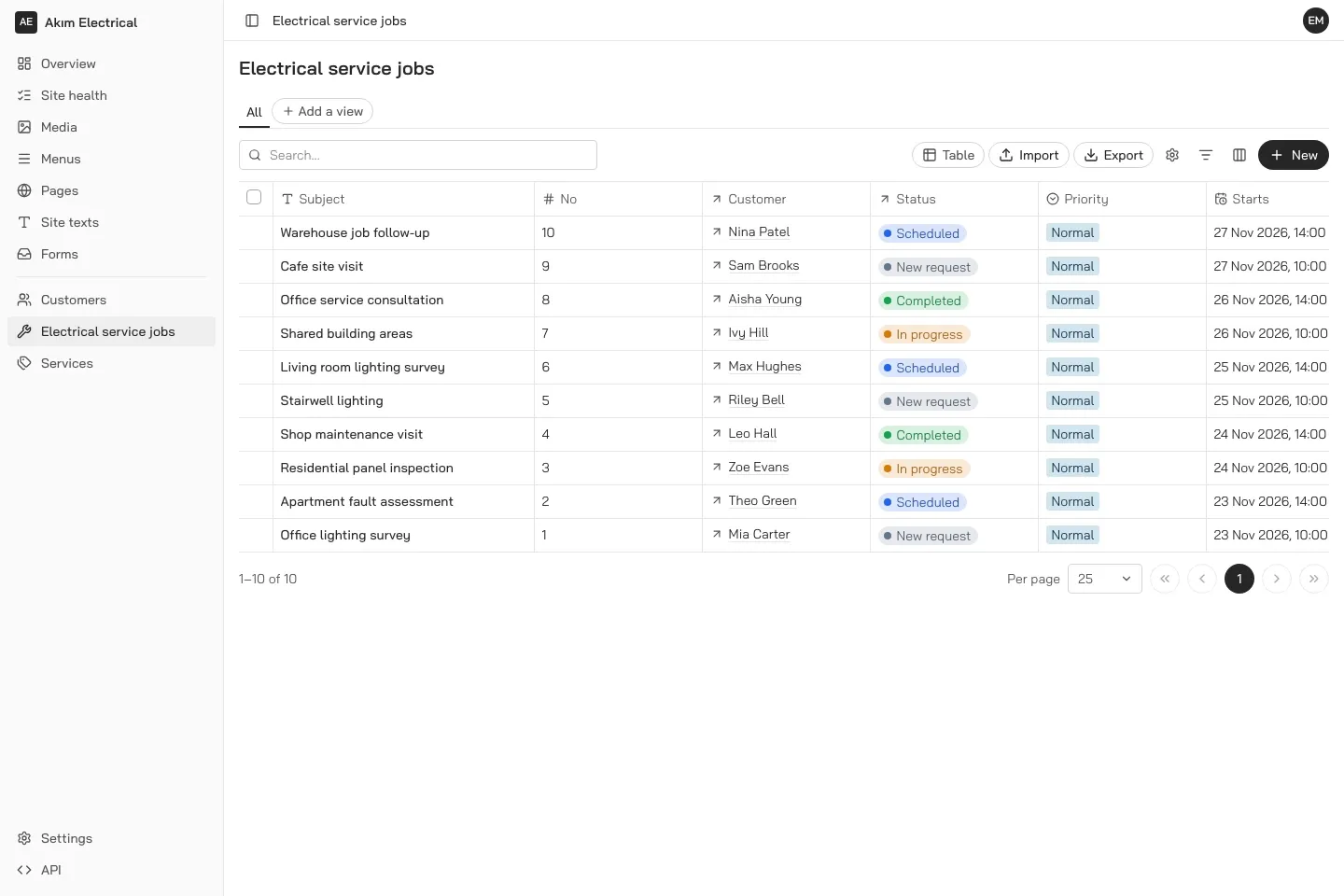
An electrician's website answers three questions: do you do this kind of job, do you cover my area, and how does a visit get confirmed? On Workzed you describe your work in your own words; the AI consultant asks questions, shows the pages it will set up and builds what you approve. Maintenance, fault response and planned installation each get their own service page, and the districts you cover are published too. A service enquiry form collects the job type, area, preferred visit window and contact details. In the admin panel each enquiry becomes a work order linked to the customer, address and responsible team member, and assessments and visits sit on a calendar by date, area and team.
An electrician's day with Workzed
- In the morning you check the team calendar. Each electrician sees the work orders assigned to them on their phone, with the address and job type; the first job is a socket and lighting service in a flat.
- Before noon a fault enquiry comes in from the site: a circuit keeps tripping. You turn it into a work order and, on the map view, assign it to a team member working near that area; the customer is sent the visit window by SMS, WhatsApp or e-mail.
- In the afternoon someone visits a shop to assess a consumer unit replacement. The notes go on the same record, you prepare the quote in the panel and send it to the customer; pending and approved quotes are listed apart.
- In the evening you close the finished jobs. You issue the invoice and send the customer a card payment link, and the panel lists the callbacks and return visits still to come.
What the site and panel include
- Separate service pages for maintenance, fault response and planned installation
- A service enquiry form: job type, area, preferred visit window and contact details
- Work orders linked to the customer, address and responsible team member
- An assessment and visit calendar by date, area and team, with a map view
- Tracking of assessments, quotes and approved jobs, with invoices and card payment links
- Service areas, job history and customer callbacks
- A blog and a contact page with the phone number, service hours and contact routes by area
Frequently asked questions
Can I see fault calls apart from maintenance work?
Yes. The job type from the form stays on the enquiry, and you filter the panel list by fault, maintenance or planned installation. For a separate emergency priority, you tell the consultant, and it asks you during setup.
Does everyone on the team see everything?
Each team member gets a role and permissions. You tell the consultant who should see which jobs, quotes and amounts, and the panel is set up that way.
How do I send a quote after an assessment?
You prepare the quote in the panel next to the assessment record and send it to the customer. Once approved, the job goes on the calendar with the same customer and address.
Can the site show which districts I cover?
Yes. The districts you serve are published on one page, with how to enquire from each.