How to build a preschool website with AI
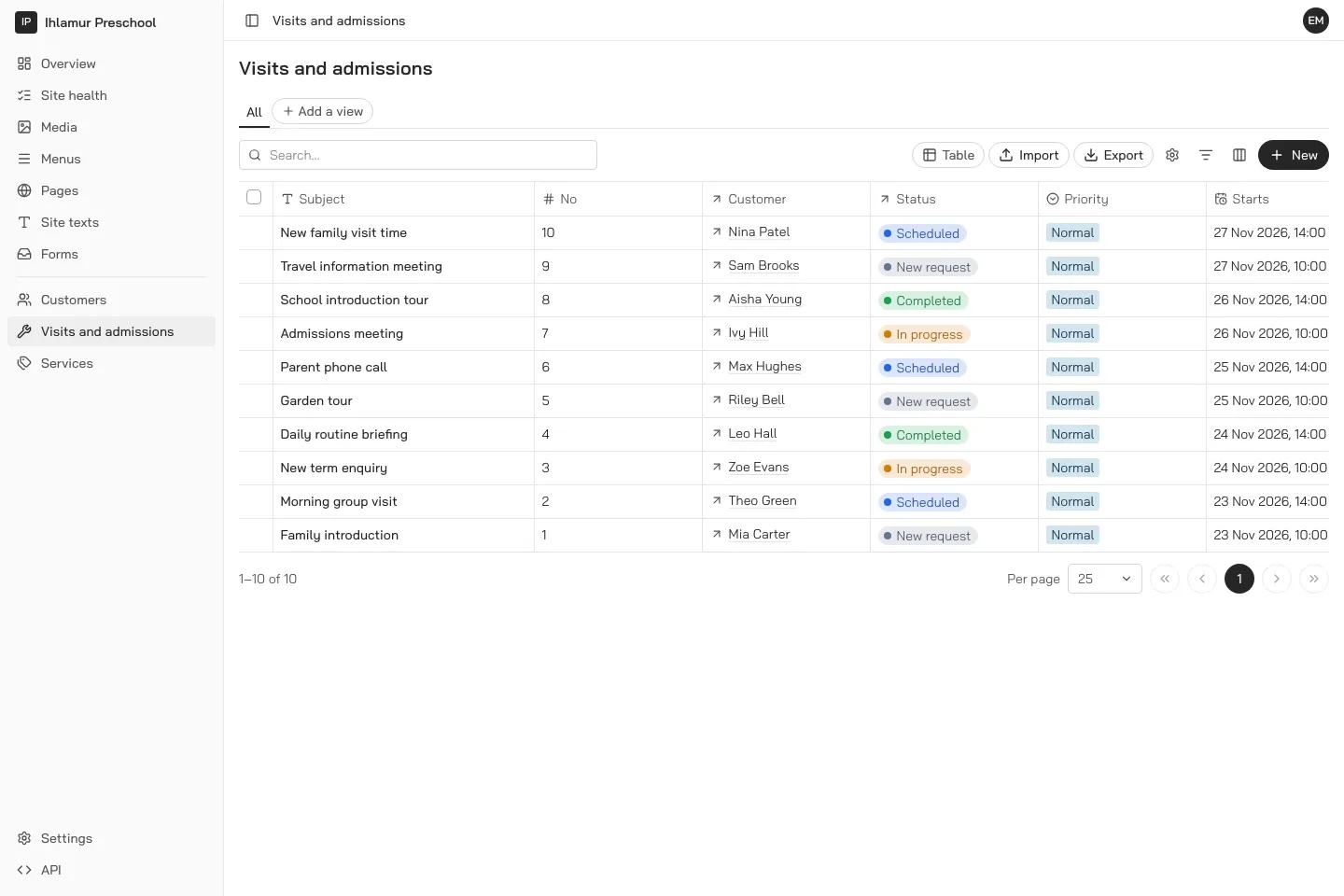
Families looking at a preschool want three answers: is there a group for my child's age, what does a day at the school look like, and when can we come and visit? On Workzed you describe your school in your own words; the AI consultant asks questions, shows the pages it will set up and builds what you approve. Your programmes, age groups and the daily routine of each class go online with your learning spaces and your educators, and an introductory visit form collects the family's contact details and preferred dates. In the admin panel, family enquiries sit with their status, and introductory visits and family meetings share one calendar.
A preschool's day with Workzed
- In the morning, while the children settle into their rooms, the head teacher checks the panel on her phone: two visit requests from last night are waiting as "new", each with the dates the family prefers.
- Before noon the admissions lead calls the families and puts the visits on the calendar; the enquiries move to "visit scheduled", and everyone on the team can see who will welcome each family.
- In the afternoon the open day for next month is announced; its date shows correctly on the site's announcements page, and families who want to come write in through the visit form.
- In the evening tomorrow's calendar shows which family arrives when and which enquiries still need a reply; the ones you have answered are marked "answered".
What the site and panel include
- Programmes, age groups and each class's daily routine
- An introductory visit form with the family's contact details and preferred dates
- Family enquiries tracked as new, visit scheduled or answered
- A shared calendar for introductory visits and family meetings
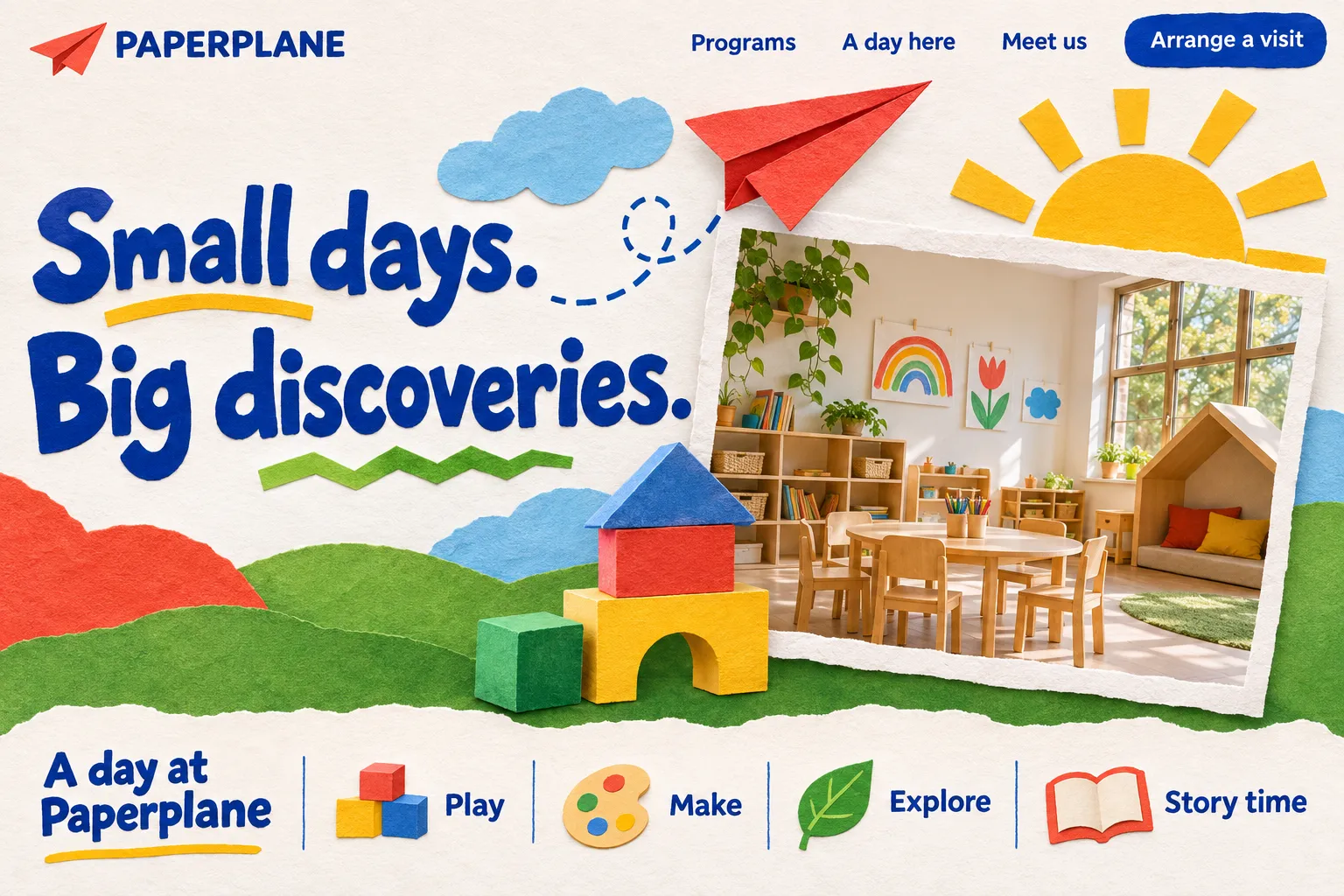
- Pages for the school, its learning spaces and the educators, with a photo gallery
- Information sessions, open days and term announcements
- Practical information for families, a blog and a contact page with drop-off and pick-up times, the address, directions and visiting hours
Frequently asked questions
Do families get a reminder before their visit?
Yes. Once a visit is on the calendar, the family can be reminded by SMS, WhatsApp or e-mail; you choose the channel during setup.
Who on the team can see enquiries?
Each person on the team has their own role and permissions. For example, you can let only the head teacher and the admissions lead see enquiries, while teachers see just the meetings they are part of.
Can I share photos of the school?
Yes. The school pages and the gallery show only the photos you choose and upload; a photo you remove in the panel disappears from the site too.
Can the panel cover what happens after a child enrols?
The panel follows each family from enquiry to introductory visit. For what comes after enrolment, such as attendance, notes to parents or term fees, you tell the consultant how you work, and it asks you during setup.